 Cut a long video into clips
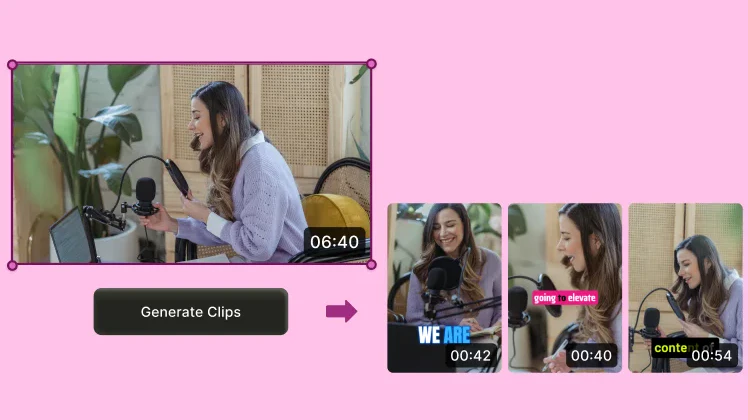
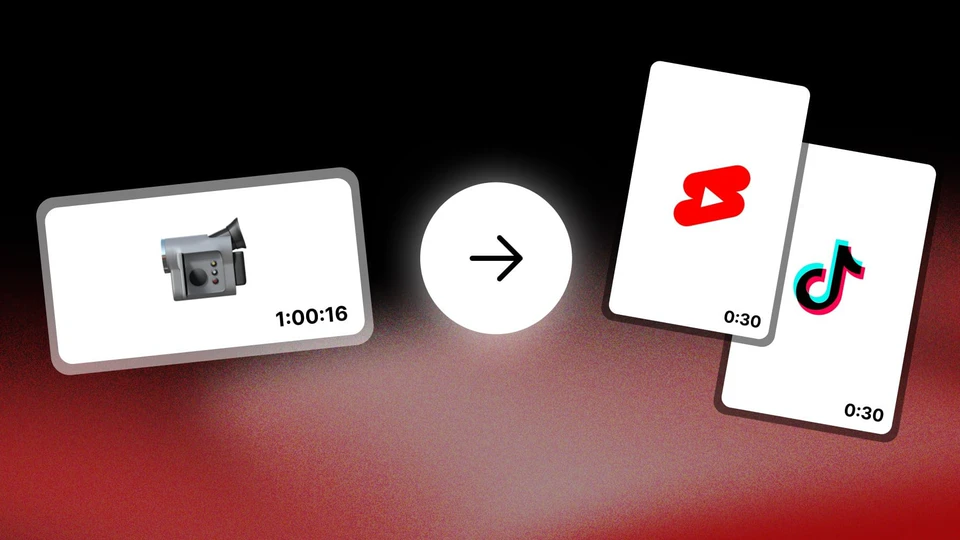
vidIQ combines clipping with tools for researching topics and preparing YouTube content. Upload your recording, let it suggest segments and adjust each result. It can suit interviews, tutorials and videos with a clear speaker; you can then work on the title and description within the same platform.
Use material you have permission to repurpose and check your campaign's rules before publishing. vidIQ does not guarantee views or acceptance of a clip.
- Input
- Local MP4 file; up to 30 GB and 10 hours. Accepts 4K source video.
- Output
- Vertical clips at 1080p, with captions and manual editing.
- Clipping languages
- English and Spanish among 11 documented languages, with automatic detection.
- Access
- Recurring free plan; shared credits and a watermark.
- Best fit
- Interviews, tutorials and videos with speech and a clear subject on screen.
- Review carefully
- Gameplay and multicamera podcasts: tracking and reframing have limitations.
From recording to reviewed clip
- 1. Upload your file.
Open Clipping in the app and upload the MP4 from your device. The current guide specifies local uploads; pasting a YouTube URL is not enough.
- 2. Set the brief.
Choose the language, captions, a target duration and the section of the video to process. Add a written prompt or let it pick moments automatically. Final durations and the number of clips can vary.
- 3. Review and adjust.
Watch the suggested segments, check their context and open the editor to fix cuts, framing and captions.
- 4. Download or publish.
Export the reviewed clip and save it to your device, or publish to YouTube Shorts or Instagram with the relevant account connected. Download anything you want to keep: we found no published retention period specifically for clips.
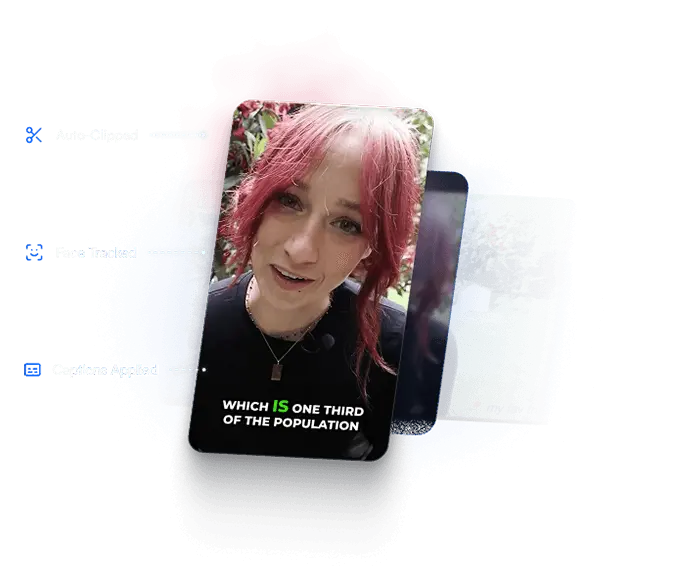
Automatic selection is a starting point
- Keep the segment coherent. Trim or remove sections in the timeline and listen to the opening and ending. A striking line still needs enough context to make sense.
- Correct the text on screen. Edit caption words and timings, adjust their position and change fonts, colors and effects. Pay particular attention to names, figures and campaign-specific terms.
- Check framing and audio. The editor lets you reposition the subject, adjust dimensions and layouts, and change volume for individual sections. Make sure faces and important text remain fully visible in the vertical frame.
- Consider whether the footage fits. Clipping needs speech and is designed for content with a visible speaker. The documentation warns that gameplay and multicamera podcasts may produce less suitable reframing. AI selection does not guarantee viral performance.
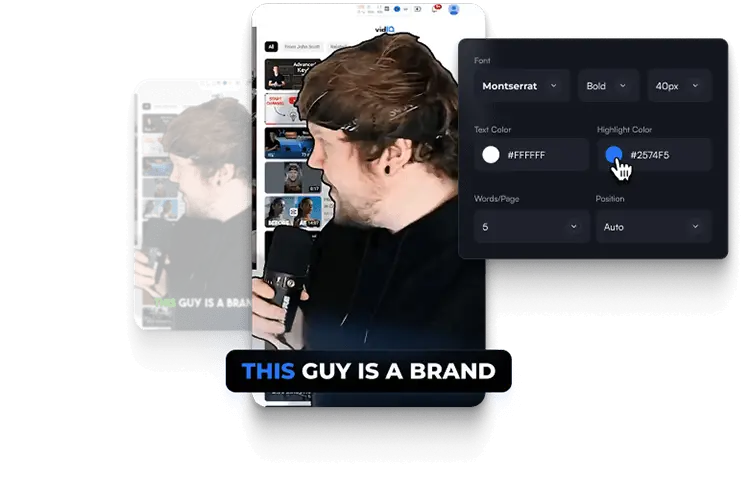
Clip, review and prepare to publish
Language support varies by tool. Clipping's language list does not mean that ideas, research or the entire interface work equally in those languages.
- Clipping. Suggests moments, adapts them to vertical and adds captions; you can then edit. Uses 9 credits per minute of input. Free includes a watermark; paid plans remove it.
- Titles and descriptions. Generates suggestions for presenting your video, ready for your review. 3 credits per title generation, up to 3 suggestions; 1 credit per description. Shares the balance with Clipping.
- Keyword research. Compares terms and estimated search and competition data to help choose an angle. Free has limited access; Boost and Max provide more results. Estimates do not guarantee rankings.
- Content ideas. Explore suggestions for your channel when you need your next topic. Personalized ideas: 3 per day on Free and 50 per day on Boost and Max. Optimized for English.
Pricing
- Free€0a month150 AI credits a month
- Watermarked downloads
- Credits shared across tools
- Boost, 1 channel€19a month2,000 AI credits a month
- No watermark
- €16.58/month equivalent, billed annually
- Max, 1 channel€39a month6,000 AI credits a month
- No watermark
- Credit top-ups for eligible subscriptions and regions
- €31/month equivalent, billed annually
Prices shown on the official page in euros for Spain. Annual monthly equivalents are billed annually; they are not month-to-month payments. Credits renew monthly and do not roll over; spending them on titles, thumbnails or other AI features leaves fewer for clipping. Multichannel configurations exist: check their price in vidIQ. Currency and offers may vary by region and date. As listed on their site on October 5, 2026. They may change.
Frequently asked questions
Is free access a plan or a temporary trial?
It is a free plan with 150 AI credits per month. The balance is shared across tools, and included credits do not roll over. Clips generated and downloaded on Free carry a watermark. You need an account to use Clipping.
Can I make clips by pasting a YouTube link?
The current Clipping guide says to upload the file from your device. Use your original MP4 if you have it. Direct import through a YouTube URL has not been confirmed.
Are credits charged based on the clips I receive?
Clipping uses 9 credits per minute of input video, not per minute of the final clip. The number of segments is not guaranteed, and other AI tools use the same balance. Check the section you will process and your remaining balance before generating.
Does it work for multicamera podcasts and gameplay streams?
You can assess your footage, but official help warns of limitations with these formats. Clipping is optimized for speech, a visible face and a clear subject. Review speaker tracking and framing before using a clip.
Can I work with English and Spanish captions?
Yes. Clipping documents English and Spanish, along with German, French, Italian, Portuguese, Vietnamese, Turkish, Russian, Hindi and Japanese, plus automatic detection. You can correct text in the editor. This list does not imply automatic translation between languages; personalized ideas are optimized for English.