 Cut a long video into clips
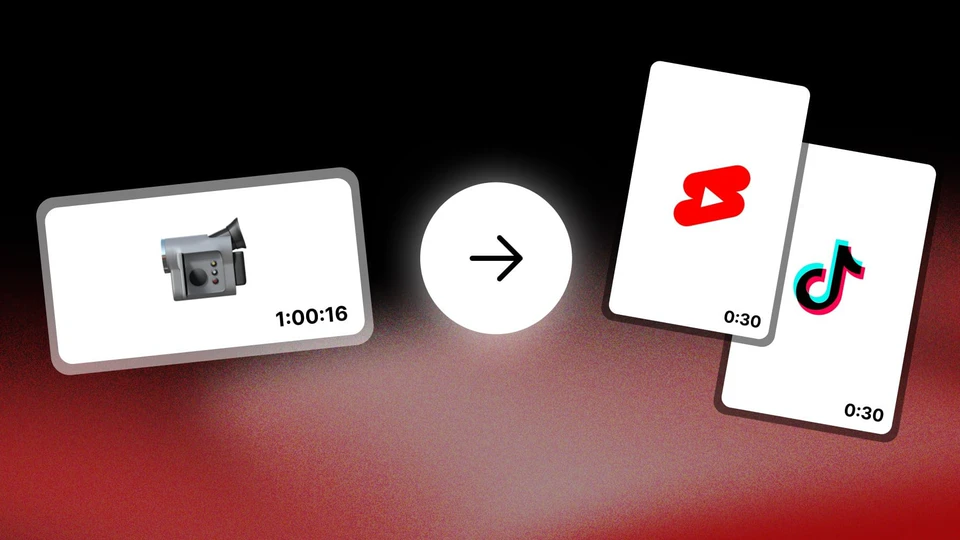
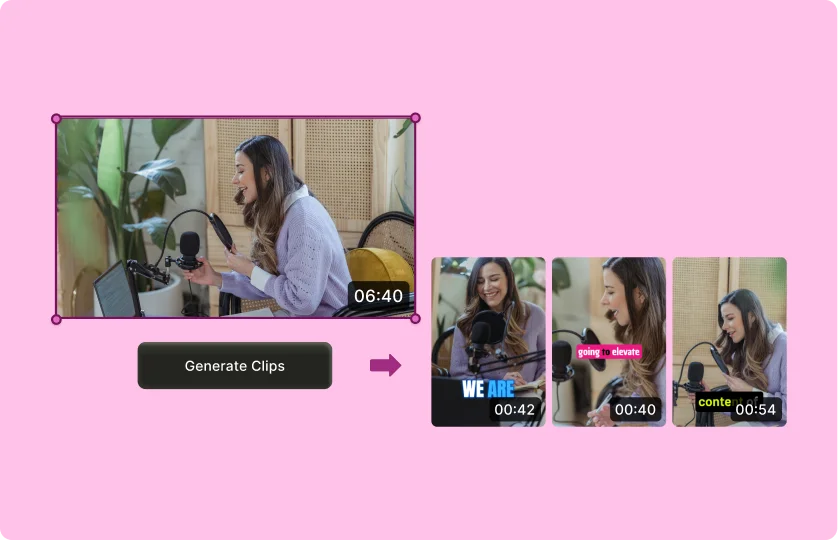
Let AI suggest moments from a podcast, interview or stream. Review the cuts, adjust the framing and captions, then export the clips you choose.
- Best for
- Podcasts, interviews and streams.
- Helps with
- Finding moments, vertical framing and captions.
- Getting started
- Free; paid plans start at USD 29/month with monthly billing.
Prepare your next batch in three steps
- 1. Add your video
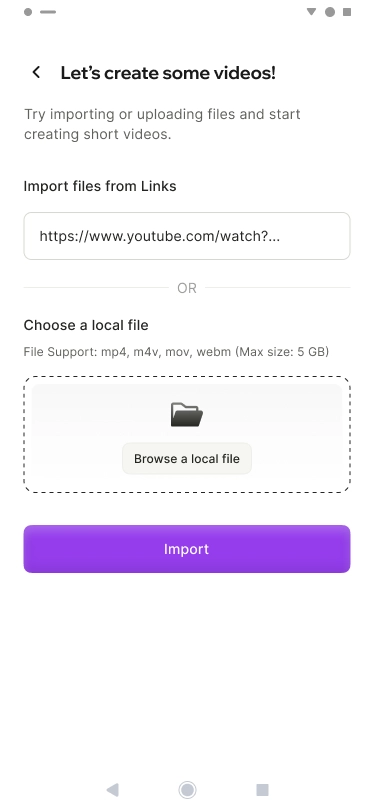
Upload a file or use a supported link. Start with your own footage or material the campaign has given you permission to use.
- 2. Review the suggestions
quso.ai finds segments and prepares them as candidates. Keep the ones with a strong opening that make sense on their own.
- 3. Adjust and export
Check the start, ending, framing and text. Export your selection when each clip is ready to deliver or publish.
AI makes the first pass. You decide what makes the cut.
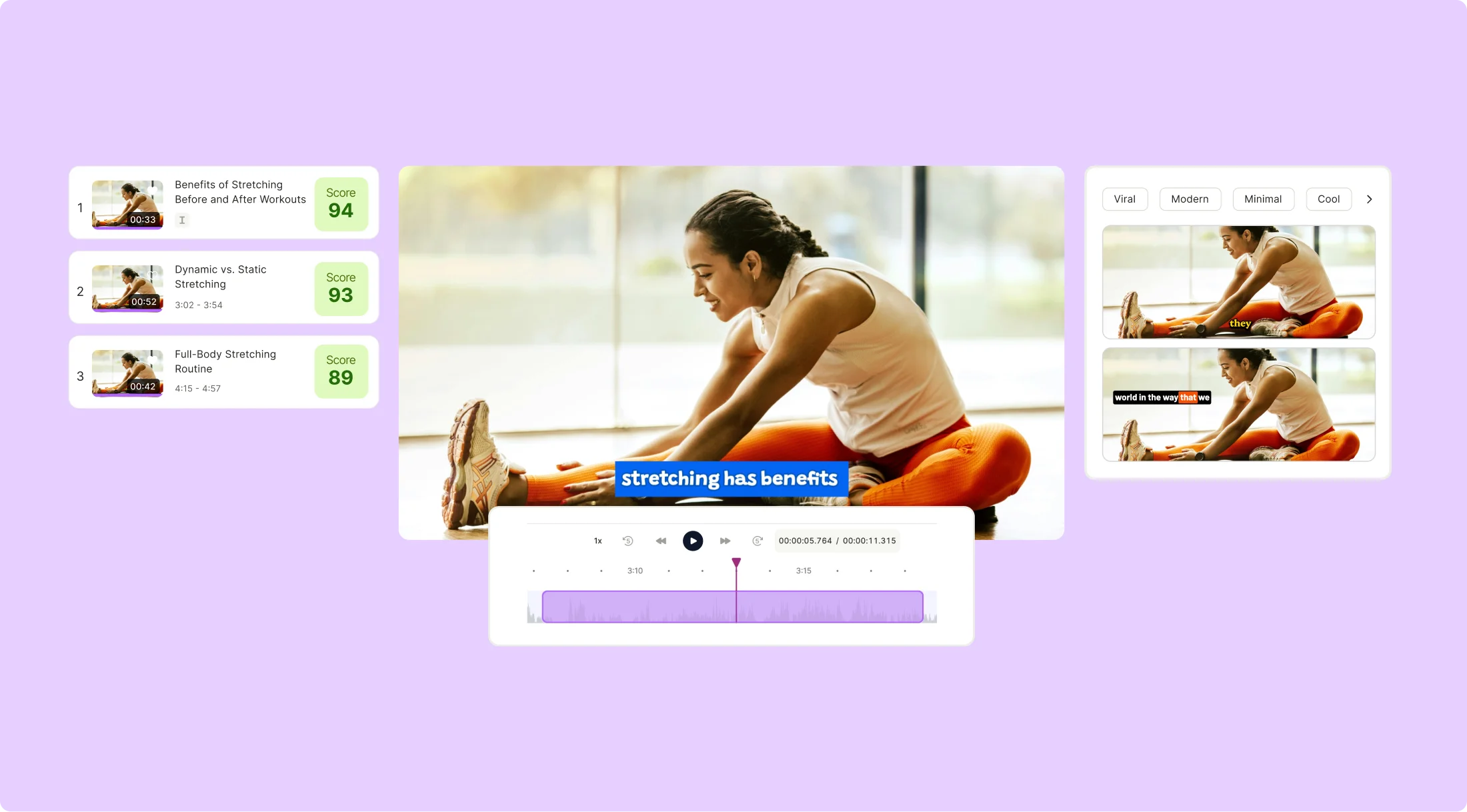
AI suggests. You choose the clip.
An interesting moment may need one more sentence to make sense. Review the suggestions alongside an editable transcript, adjust the timing and drop the clips that lose context. You can also select a passage to make your own cut.
- Keep the context that makes the moment work.
- Check how every clip opens and ends.
- Review names, numbers and captions before exporting.
Your judgment is still the final step.
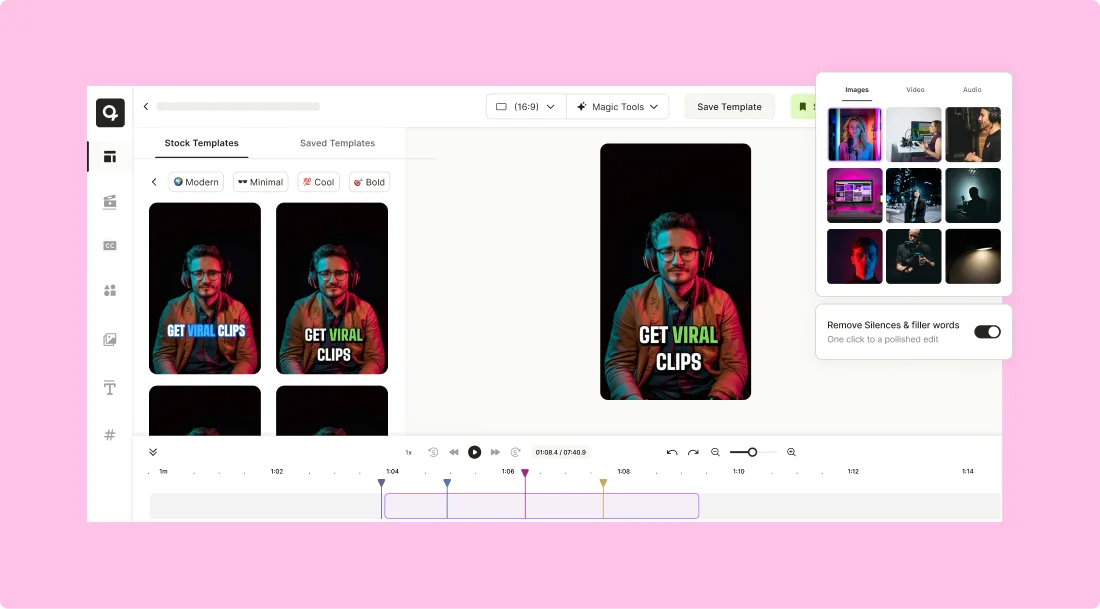
Fit the format. Make the words easy to read.
Prepare vertical, horizontal or square video. Automatic reframing helps keep the speaker in view; check the result before exporting.
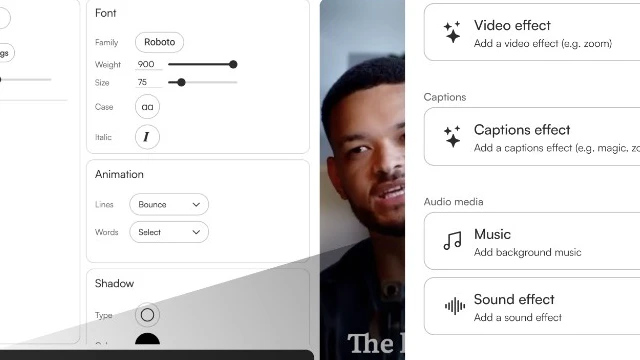
Add captions in several languages, including Spanish, and correct anything that needs attention. Adjust the font, color, position and timing so captions support the video without covering what matters.
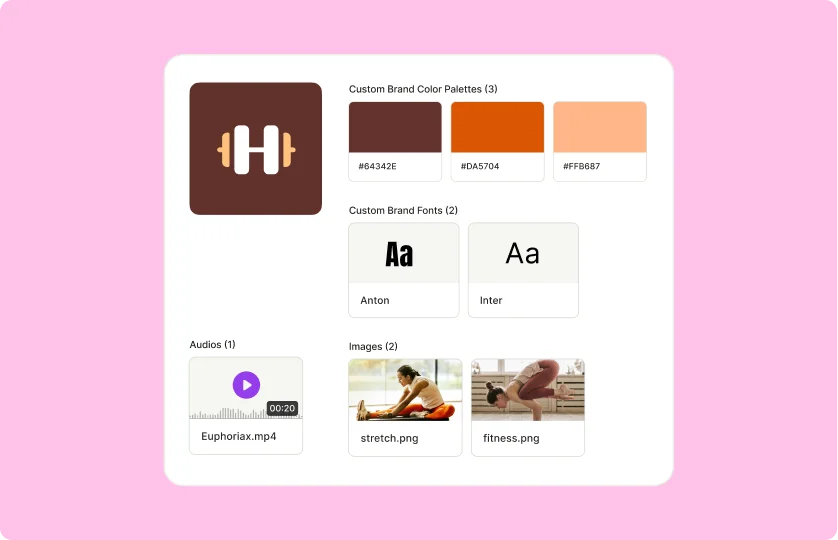
A consistent look across your deliveries
If you work for a brand or manage a channel, Brand Kit stores logos, colors, fonts and reusable templates. Apply the same foundation to your next clips, then adapt each piece to its content.
Brand Kit is included in Growth. It is an option for keeping a consistent visual identity alongside your clipping workflow.
Pricing
- FreeUSD 0a month75 credits a month
- Try clip selection and editing
- Exports at 720p with a watermark
- Files are kept for 7 days
- LiteUSD 29a month100 credits a month
- 1080p without a watermark
- Advanced desktop editor
- 16:9, 9:16 and 1:1 formats
- EssentialUSD 39a month300 credits a month
- Scheduling to 7 platforms
- Filler-word and silence removal
- Content Planner
- GrowthUSD 49a month600 credits a month
- Brand Kit and templates
- Social analytics
- Priority support
Prices in USD with monthly billing. Essential and Growth include Lite's features. Credits limit processing; they do not guarantee a fixed number of clips. With annual billing, Lite, Essential and Growth are listed at a monthly equivalent of USD 19, 26 and 33, billed annually, with 200, 600 and 1,200 credits per month. As listed on their site on October 5, 2026. They may change.
Frequently asked questions
Is this the same as vidyo.ai?
Yes. quso.ai is the current name of vidyo.ai. If you knew the tool under its previous name, this is its current website.
Can I use it for a clipping campaign?
You can prepare clips from your own or authorized footage. Before submitting them, check the campaign's rules for format, length, captions and permitted edits. Using a tool does not guarantee approval or earnings.
Does AI decide what gets published?
AI suggests candidates. You can review them, adjust the cuts or discard them before exporting or publishing. If you use scheduling, also check which accounts and features your plan supports.
What are the free plan's limits?
It includes 75 credits per month, 720p exports with a watermark and 7-day file retention. You can sign up without a card. Use it to see how the tool handles your footage.
Which plan do I need for watermark-free deliveries?
Paid plans, starting with Lite, offer 1080p exports without a watermark. Lite costs USD 29/month with monthly billing. Compare credits and extra features before choosing; the final result still depends on the footage and your editing.