 Caption and edit
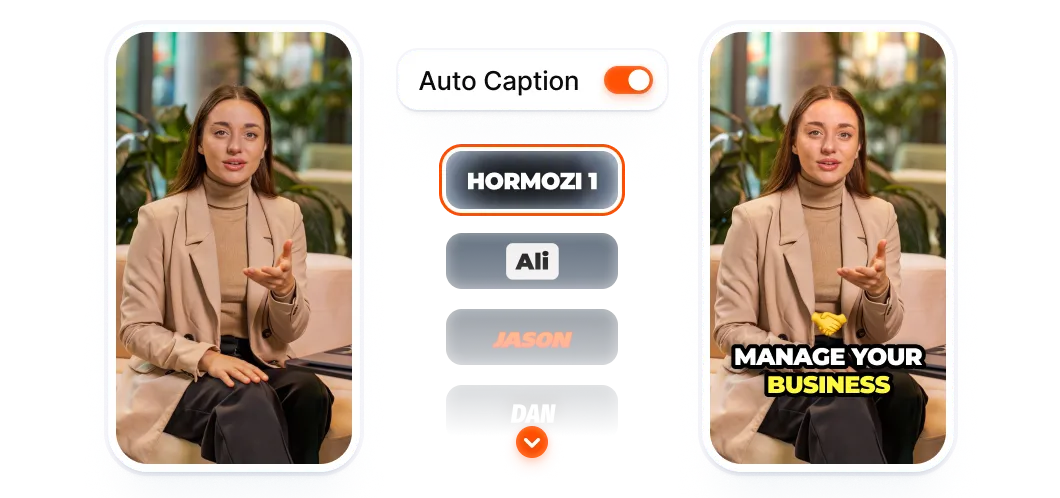
Upload your video, generate captions, then review the text and edit in Submagic. You can style captions, add cutaway footage and adjust the pace with the features in your plan. It fits when you already have a cut from a podcast, interview or stream and want to finish it for Shorts, Reels or TikTok.
- Main task
- Caption and edit existing video.
- Input
- Video file; YouTube link in the Magic Clips workflow.
- Output
- An edited, captioned video you can download.
- Languages
- Captions in English and Spanish, among other languages.
- Access
- Limited trial; a recurring free plan is unconfirmed.
- Long videos
- Magic Clips requires a paid add-on.
A short workflow, with a review before export
- 1. Choose your footage.
To finish a clip, upload the excerpt you want to edit. To find cuts in a long video, use the Magic Clips workflow if you have purchased the add-on.
- 2. Generate captions.
Choose the language and a style. Check names, numbers and campaign-specific terms before moving on.
- 3. Adjust the edit.
Fix the text, review cuts and add B-roll where it provides context. The automatic tools available depend on your plan.
- 4. Export and deliver.
Choose the quality included in your subscription and watch the full result. Keep both your source file and export; we have not confirmed how long Submagic retains projects.
The transcript is a starting point; you decide the cut
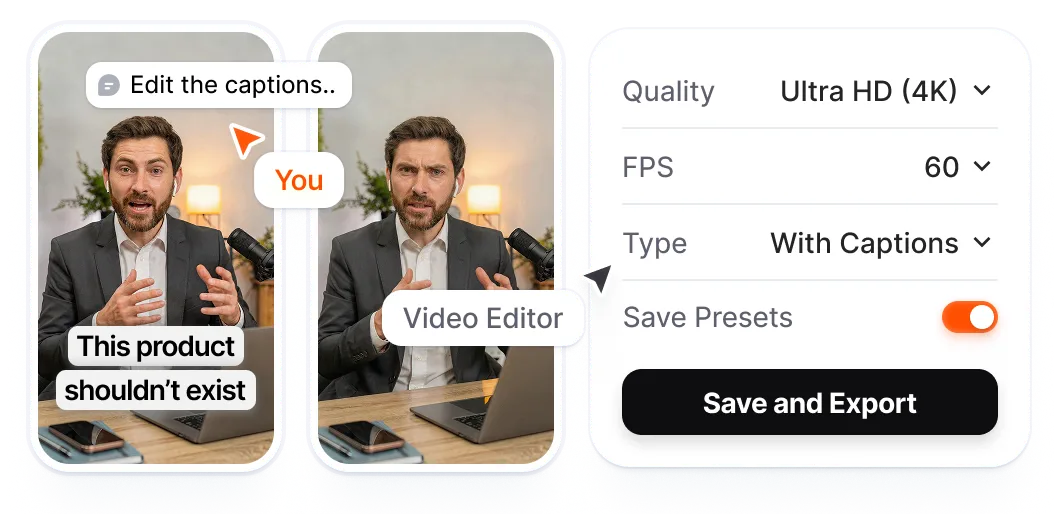
You can correct words, change line breaks and adjust caption timing. You can also change the font, size, colours and style. Review the result during playback to catch text covering a face or a caption disappearing too early.
- Trim through text. The editor lets you work from the transcript. When removing a passage, check that the sentence still makes sense and the audio cut works.
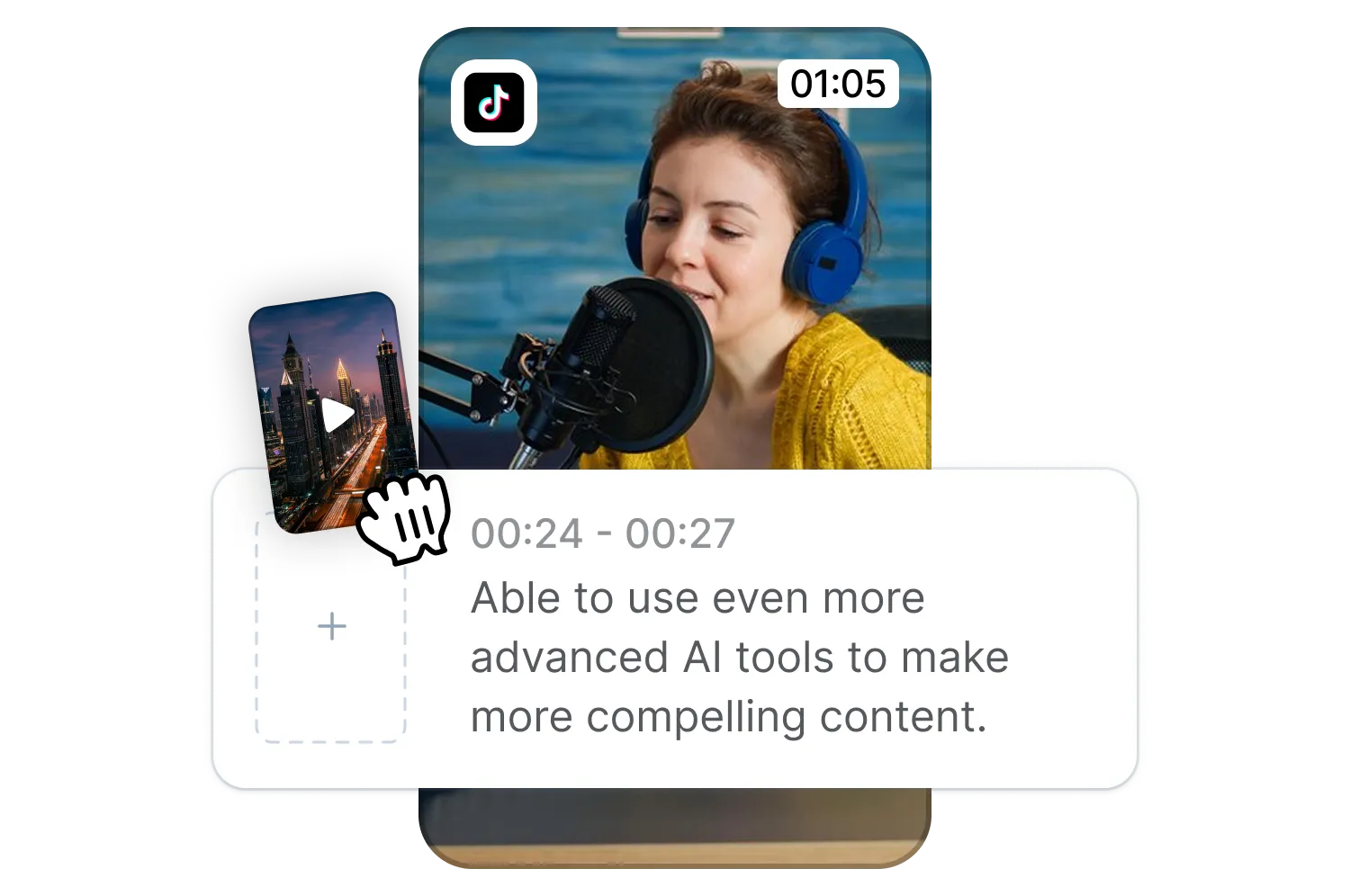
- Give cutaways a purpose. You can choose the B-roll, its placement and its duration. Automatically selected footage needs the same review as a shot you pick yourself.
- Match the campaign requirements. Use the campaign's footage and check its rules for captions, music, logos and stock assets. The tool does not determine whether a clip meets those requirements.
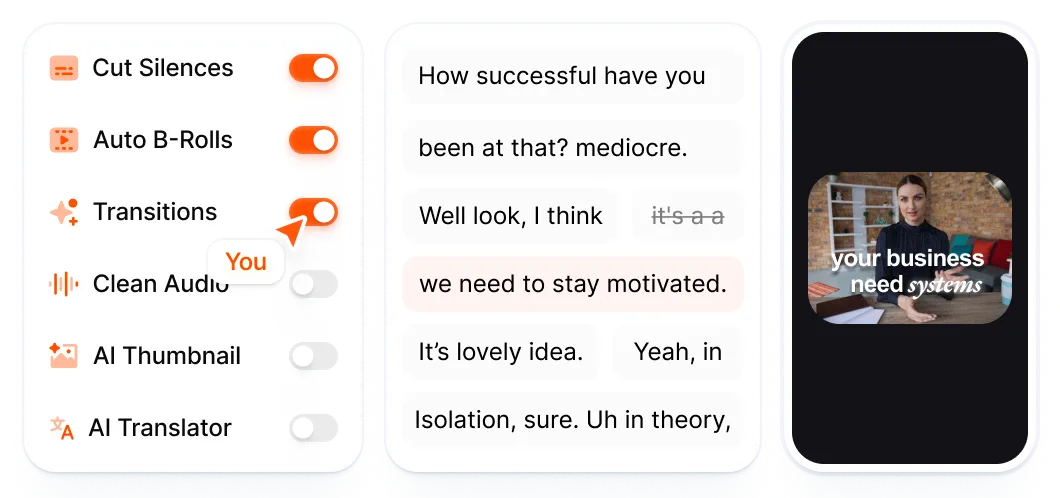
The features that matter when finishing a clip
- Styled captions. Paid plans combine automatic captioning with text editing. Starter offers standard templates; Pro and Business add premium options. English and Spanish are advertised; always review the transcript.
- B-roll and pacing. Starter includes standard assets and text-based trimming. Pro adds Storyblocks stock, automatic zooms and automatic removal of silences and bad takes. Business includes Pro's features. Availability of these tools in the trial is unconfirmed.
- Magic Clips for long video. Finds excerpts in a video file or a YouTube link. It is a subscription add-on: the official help page lists $19 per month and 10 uploads. Confirm source-video limits in your account before buying. Unlimited usage has not been confirmed.
- Export quality. Starter lists 1080p at 30 FPS; Pro supports up to 2K at 30 FPS according to the help centre and comparison table. Business lists up to 4K at 60 FPS. Paid plans remove the watermark. The quality of your source file still matters.
Pricing
- Starter$19per member a month15 videos a month, up to 2 min
- Standard templates
- Text-based trimming
- $12/month billed annually
- Pro$39per member a month40 videos a month, up to 5 min
- Storyblocks stock and zooms
- Silences and bad takes removed
- $23/month billed annually
- Business + API$69per member a monthUp to 100 videos a month, up to 30 min
- Everything in Pro
- Up to 4K at 60 FPS
- $41/month billed annually
Published prices in USD per member. The annual equivalent is not a subscription charged month by month. The pricing page also expresses these allowances as 45, 120 and 300 credits. The help centre describes a trial of 3 watermarked videos; monthly renewal, duration and resolution are unconfirmed. The official site contains conflicting blocks (including unlimited videos for Business): confirm the terms when subscribing. Magic Clips is purchased separately. As listed on their site on October 6, 2026. They may change.
Frequently asked questions
Can it caption my existing cuts and also extract them from a long video?
Use the caption and video editor to finish an existing cut. Submagic offers Magic Clips as a paid add-on for extracting excerpts from long video; it is not included by default in the advertised base price.
Is the trial free, and do I need a card?
Official sources offer 3 trial videos and say no card is required. Trial exports carry a watermark. We have not confirmed a free plan that renews every month, or the duration and resolution of trial videos.
Can I caption in English and Spanish?
Yes, both appear among the supported languages. The total advertised language count varies between pages; we have not tested accuracy. Check names, accents and words spoken over noise or overlapping voices.
Can I correct the automatic result?
Yes. You can edit caption text, line breaks, timing and style, trim through the transcript and adjust cutaway footage. Check the finished edit to make sure a cut does not change the meaning of an answer.
Which plan do I need to deliver without a watermark?
All three paid plans advertise watermark-free exports. Also choose by duration and volume: Starter supports up to 2 minutes per video, Pro up to 5, and Business up to 30. The main plan card places 4K at 60 FPS in Business. Keep local copies of your files.