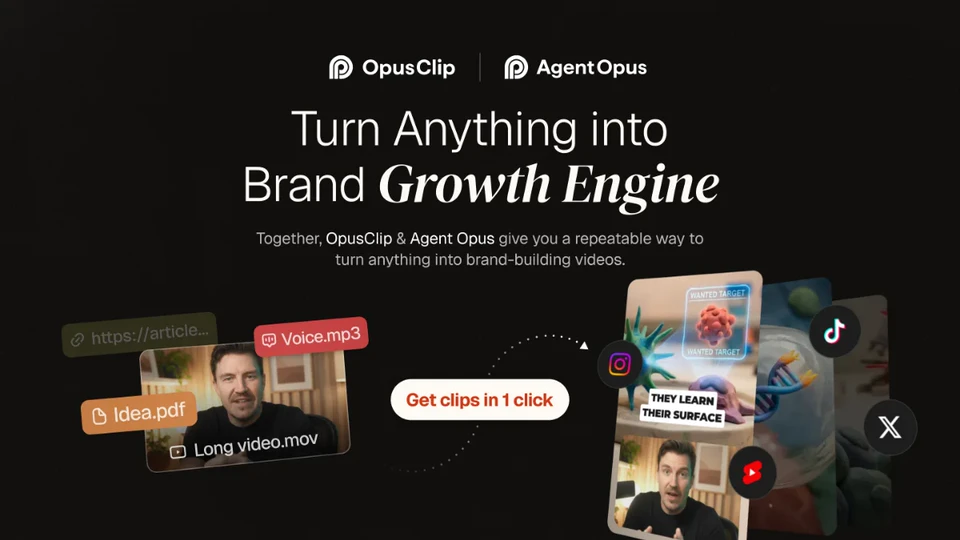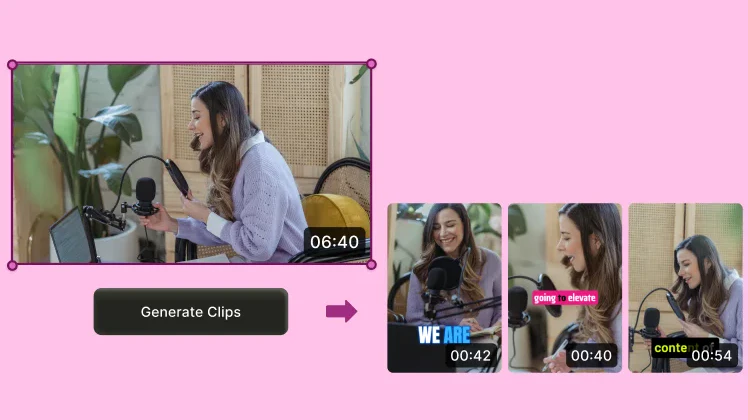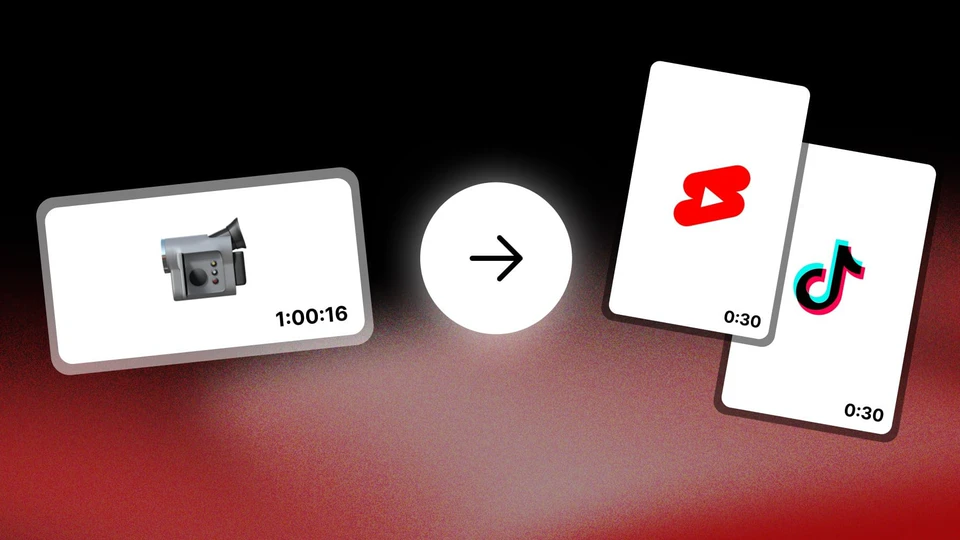
 Cut a long video into clips
Upload a recording or import a YouTube video. Choppity suggests segments from spoken content and lets you adjust the cut, captions and framing. It can help you prepare clips from podcasts, interviews or recorded streams with conversation.
- Purpose
- Extract clips from recordings with speech.
- Input
- Video file or public YouTube link; MP4 is the recommended option.
- Output
- Editable clips; MP4 video downloads on paid plans.
- Languages
- Transcription and clip generation in English and Spanish, among other languages.
- Clip formats
- Portrait, square or landscape.
- Access
- Limited Free access to try the workflow; payment required for downloads and scheduling.
From an episode to a reviewed clip
Start with a recording you are allowed to repurpose, then review each segment before delivering or publishing it.
- 1. Import your content.
Upload a file or paste a public YouTube video link. Use a recorded file for streams; the help centre excludes YouTube live-stream imports.
- 2. Set the output.
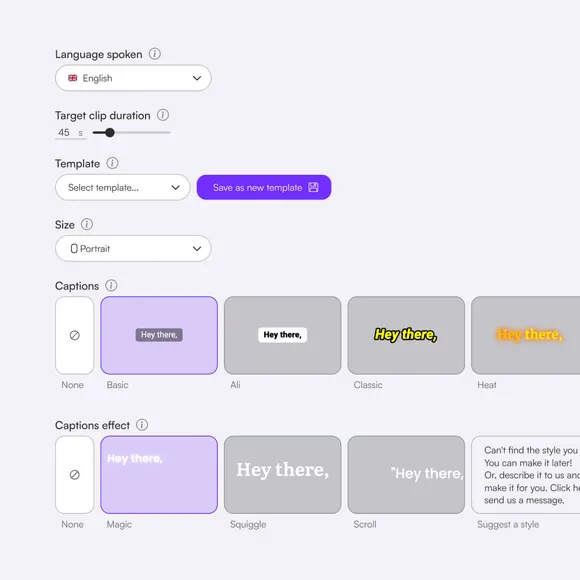
Choose the spoken language, aspect ratio, target duration and caption style. You can add a request about the moments you want to find.
- 3. Review the suggestions.
Open the generated clips and check that their start and end preserve the meaning of the conversation.
- 4. Refine and deliver.
Correct the text and framing. With a paid plan, download an MP4 or publish and schedule to compatible accounts.
Keep the context and control the finish
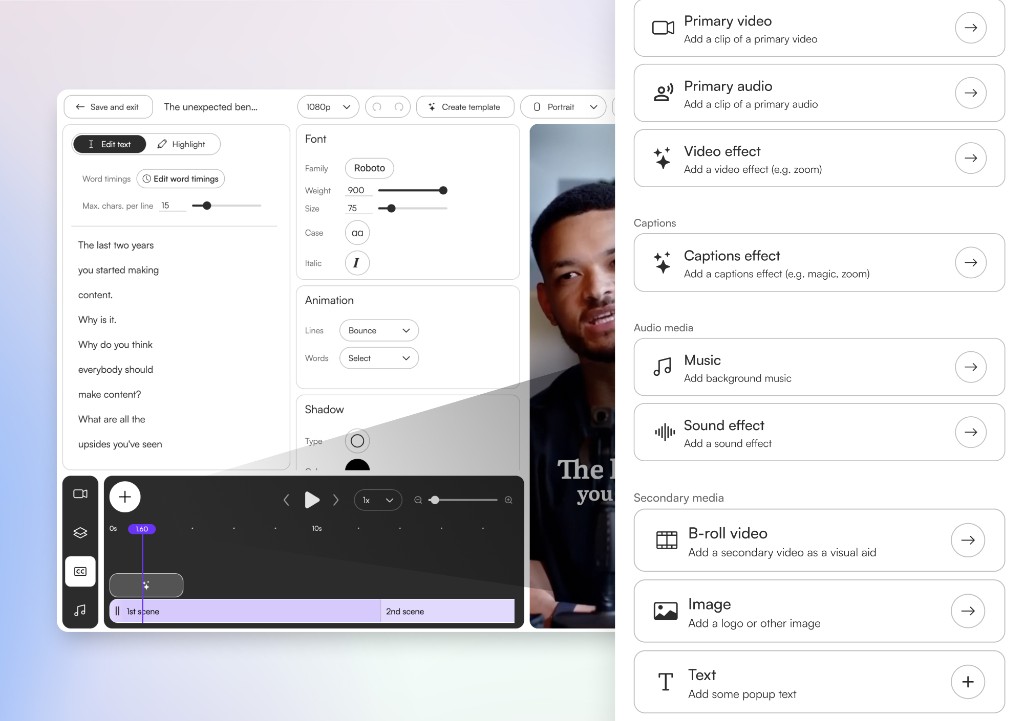
Automatic selection gives you a starting point. The editor lets you trim through the transcript or timeline, remove passages and restore cuts. Review the pacing and any words that change the clip's meaning.
- Cuts that make sense. Adjust a segment so an answer retains the question or context it needs.
- Captions you can review. Correct names, words and timing; style the captions for mobile viewing.
- Adjustable framing. Review speaker tracking and change the crop when automatic selection misses what you need.
For a campaign, check reuse rights, the brief and delivery requirements. Choppity does not guarantee approval of a submission.
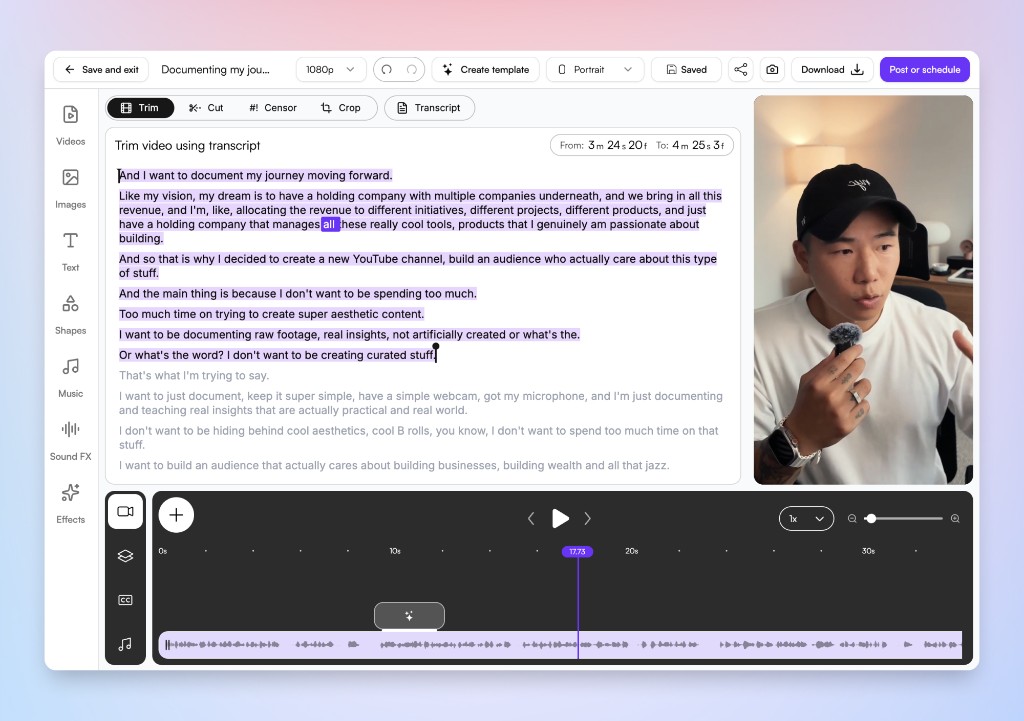
Features that matter when preparing clips
These tools help turn a recording into reviewed pieces; export and branding availability depend on your plan.
- Moments and search. Generate AI suggestions or find words and phrases in the transcript to create a specific segment. Spoken content is the best documented use case.
- Captions and formats. Edit captions and prepare portrait, square or landscape video. Custom fonts and saved brand templates appear from Creator in the current pricing table.
- Publishing and scheduling. From Starter, pricing includes scheduling: 1 social account on Starter, 3 on Creator and 10 on Team. Check which networks your account supports; official sources disagree about the rollout of some integrations.
English and Spanish are documented for transcription and clipping. Caption translation inside the editor is limited; do not treat it as a complete dubbing or translation service.
Pricing
- FreeUSD 0a month1 h of AI analysis
- 2 GB and 3-day projects
- Generate, edit and preview
- No video downloads
- StarterUSD 20a month3 h of AI analysis
- 40 GB and 30-day projects
- 1080p downloads
- Scheduling to 1 account
- USD 14/month equivalent, billed annually
- CreatorUSD 32a month5 h of AI analysis
- 100 GB
- Custom fonts and 1 brand template
- 3 scheduling accounts
- USD 22.40/month equivalent, billed annually
- TeamUSD 48a month5 h of AI analysis
- 200 GB and a shared workspace
- 5 brand templates
- 10 scheduling accounts
- USD 33.60/month equivalent, billed annually
Published base prices in USD. The annual equivalent is not a monthly subscription at that price: it is paid upfront. Creator and Team offer a usage slider; these are their base values. Hours measure video analysis, not the number of clips. The help centre retains other names and prices, and official messages conflict on free downloads and watermarks: confirm the conditions in your account before subscribing. There is also an Enterprise plan with custom pricing. As listed on their site on October 5, 2026. They may change.
Frequently asked questions
Can I download clips for free?
The pricing table and export guide reserve video downloads for paid plans. Free lets you generate, edit and preview. Other official pages mention free exports or watermarks under different conditions; we do not have one consistent confirmation of those offers.
Does it support Spanish videos?
Yes: the help centre includes English and Spanish for transcription and clip generation. Select the language before analysis and review names and sentences. Noise, overlapping speech or mixed languages can require more corrections. Caption translation inside the editor is limited.
Can I use podcasts, interviews or streams?
Yes, particularly recordings with conversation. You can upload a file or import a public YouTube video. The help centre excludes YouTube live-stream imports, private videos, age-restricted videos and members-only content. For a stream, prepare a recording you have permission to repurpose.
What are the upload limits and download resolution?
The format guide lists MP4/MOV, up to 4 GB and 3 hours per file, with additional restrictions above 1080p. Some marketing pages advertise 10 GB and other formats. Use MP4 and check the limit in your account. Current pricing advertises 1080p downloads from Starter; accepting a 4K source does not imply 4K exports.
Does AI make every decision, or can I edit?
You can review suggestions, trim through text or the timeline, correct captions and adjust framing. These controls are described in the documentation; this page is not based on an account or export test. Check the result before delivering a campaign clip.